Lights
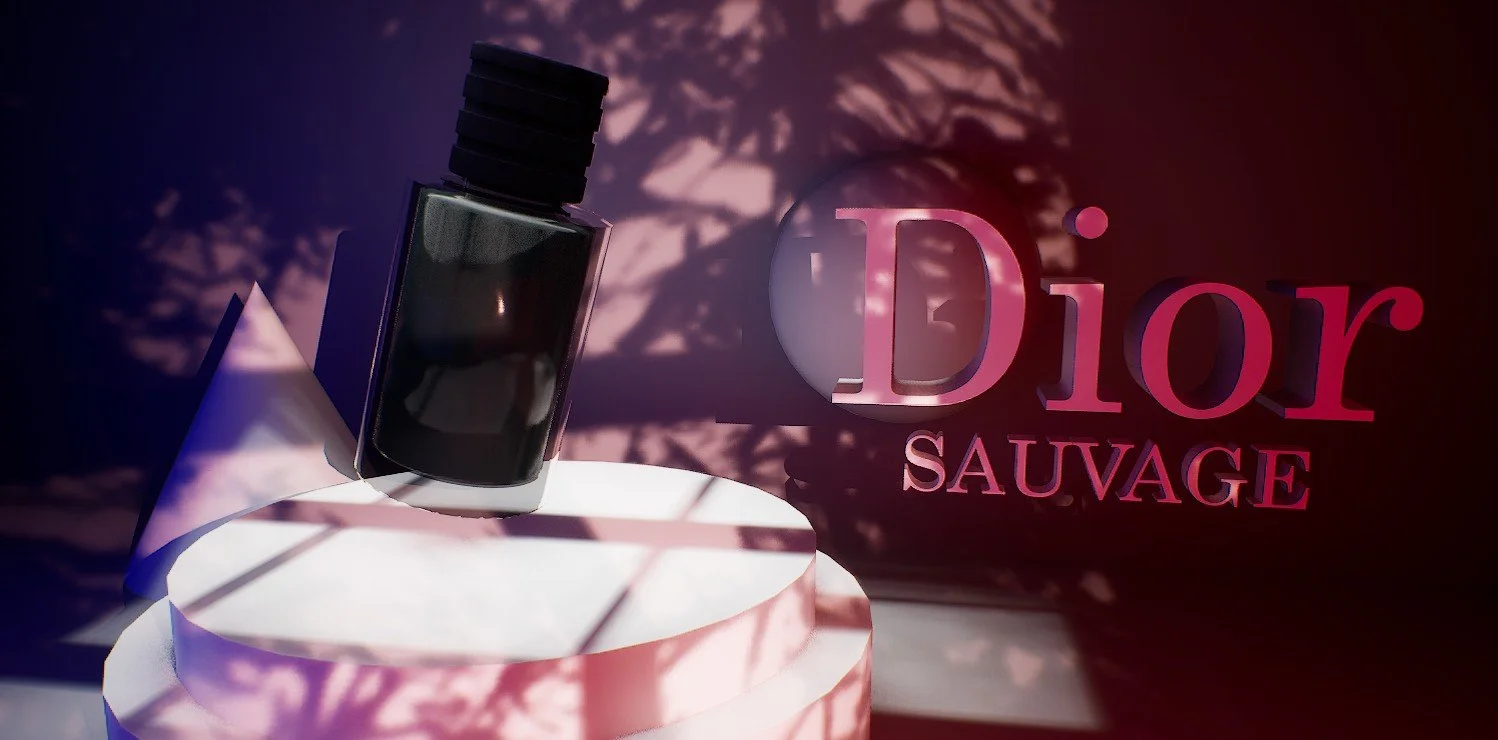
Unreal Engine light functions (gobos) can dramatically elevate product photography and videography by adding stylized, realistic lighting effects that mimic professional studio setups. They allow you to project patterns, textures, or shadows onto your scene, creating mood, depth, and visual interest without physical equipment.
What Are Light Functions and Gobos in Unreal?
Light Functions in Unreal Engine are special materials applied to lights that modulate their intensity and shape. They act like filters, controlling how light interacts with surfaces.
A Gobo (short for "goes before optics") is a lighting technique that uses a stencil or pattern to cast shadows or textures—like window blinds, foliage, or abstract shapes—onto a scene.
These can be implemented in Unreal using spotlights, rectangle lights or directional lights with custom light function materials.
How to create a custom Light Function Material?
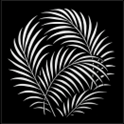
We first need to create a black and white stencil image where the white elements represent areas where light is permitted, and the black blocks any light passing through. The image needs to be in a 1:1 ratio and saved in .bmp or .jpg format.
This texture is then imported into our Unreal environment Content Drawer in an appropriate folder. We should ideally follow correct naming conventions, T_NameofImage, to distinguish this as a texture image.
With this texture in the content drawer, right-click on the texture and select Create Material, select the material node (brown header) and over in the details panel, change Material Domain to Light Function.
Connect RGB output from Texture Sample Node to Emissive Color Input, apply and save. You can now close this window.
Right-click and rename this Material LF_NameofImage (LF stands for Light Function). This is what we will be applying to our light in our scene.
Select the light in the scene you wish to apply the light function to in the details panel, look for Light Function and Light Function Material. Select the Light Function material drop-down (None) and search for the newly created Light Function Material you have created, and left-click on it to apply.
IF these steps have been followed, this should apply the gobo filter onto your light source, you can adjust its fade distance, scale and all of the other light functions such as intensity, colour and Attenuation.