
Planning Stage
Constant Frame Rate (CFR) and Variable Frame Rate (VFR) dictate how video frames are recorded, stored, and played back. Understanding the distinction is essential for choosing the right recording settings and ensuring smooth editing workflows.
Core Differences
Frame Pacing: CFR encodes every frame at exact, rigid time intervals (e.g., precisely every 33.3ms for 30 FPS). VFR dynamically drops or increases the frame rate depending on motion complexity or system load.
File Efficiency: VFR optimizes storage space and network bandwidth by recording fewer frames during static scenes and ramping up during high motion. CFR maintains a constant cadence regardless of what is happening on screen.
Editing Compatibility: CFR is universally accepted by video editing software. VFR frequently breaks timelines, causing severe audio desync and stuttering because editors expect consistent timestamps.
CFR vs. VFR Frame Pacing Animation
Constant Frame Rate (CFR)
30 FPS
Frames render at exact, predictable intervals. Fully compatible with all video editing timelines.
Variable Frame Rate (VFR)
-- FPS
Standard on mobile phones & screen recorders (OBS/Zoom).
Warning: Causes audio desync and stuttering in Premiere & DaVinci Resolve.
No. Mainstream smartphones prioritize thermal management, battery life, and background multi-tasking over strict timeline clock accuracy. When a phone experiences a micro-stutter or CPU load spike, it dynamically stretches or drops frame durations on the fly. Even pro camera apps only use settings like "30fps" as a target average rather than a rigid hardware clock, resulting in Variable Frame Rate (VFR) by default.

Visualizing mobile hardware handling CPU load spikes via dynamic frame pacing adjustments.
VFR by Default
Listen Aloud
You can inspect your video file using free diagnostic tools like MediaInfo or VLC Media Player (press Ctrl+J for codec details). If the metadata reads "Frame rate mode: Variable" or displays shifting timecode intervals, your footage is VFR. CFR files will always show a locked, unchanging frame rate value.
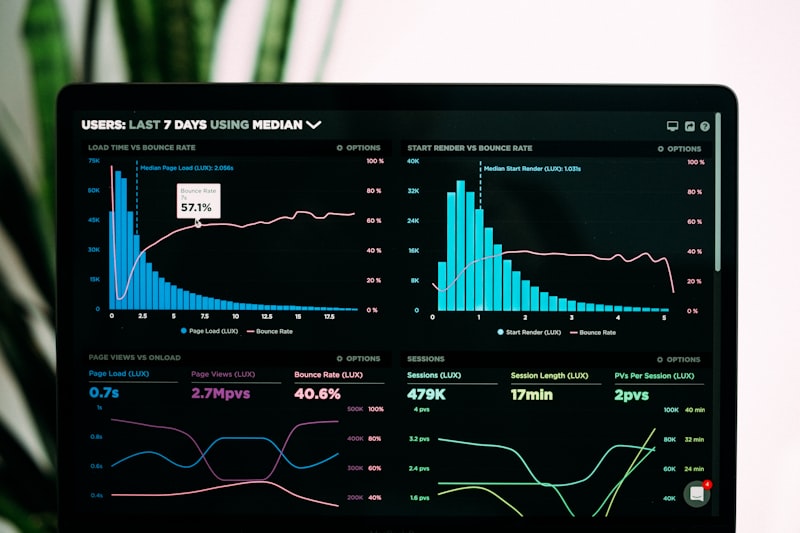
Checking video properties for frame rate mode flags and fluctuating timecode metrics.
Diagnostic Tool Check
Listen Aloud
Professional non-linear editors like DaVinci Resolve or Premiere Pro expect strict, mathematical sync between video frames and audio sample rates. When fed VFR clips, the timeline engine loses track of fluctuating timestamps, causing audio to drift out of sync, stutter, or disappear entirely. Always transcode files to fixed CFR via Handbrake before editing.

Timeline desync occurring when an editing suite attempts to parse erratic VFR timecodes.
Fix via Handbrake Transcode
Listen Aloud
Import your VFR clip into Handbrake, navigate to the "Video" tab, and look under the Framerate (FPS) section. Select a static target rate (such as 30 or 60). Crucially, select **"Constant Framerate"** instead of "Peak Framerate" (which defaults back to VFR behavior). Choose an appropriate preset and export to guarantee smooth playback and perfect timeline synchronization.

Setting the encoder flag to strict Constant Framerate inside desktop processing suites.
Handbrake Workflow
Listen Aloud